Organization Settings
Update your organization's display name and review your tenant URL.
yoursubdomain.webs8.com, sign in as an admin, and click Settings to change your organization's display name. Your subdomain URL is permanent and cannot be changed after the organization is created.
Accessing settings
-
Navigate to your org dashboard
Go to
yoursubdomain.webs8.comin your browser. -
Sign in as an admin
Use your organization admin credentials. Only admins can change organization settings.
-
Open Settings
Click Settings in the left navigation panel of your organization dashboard.
-
Edit the display name and save
Update the organization display name in the text field, then click Save changes.
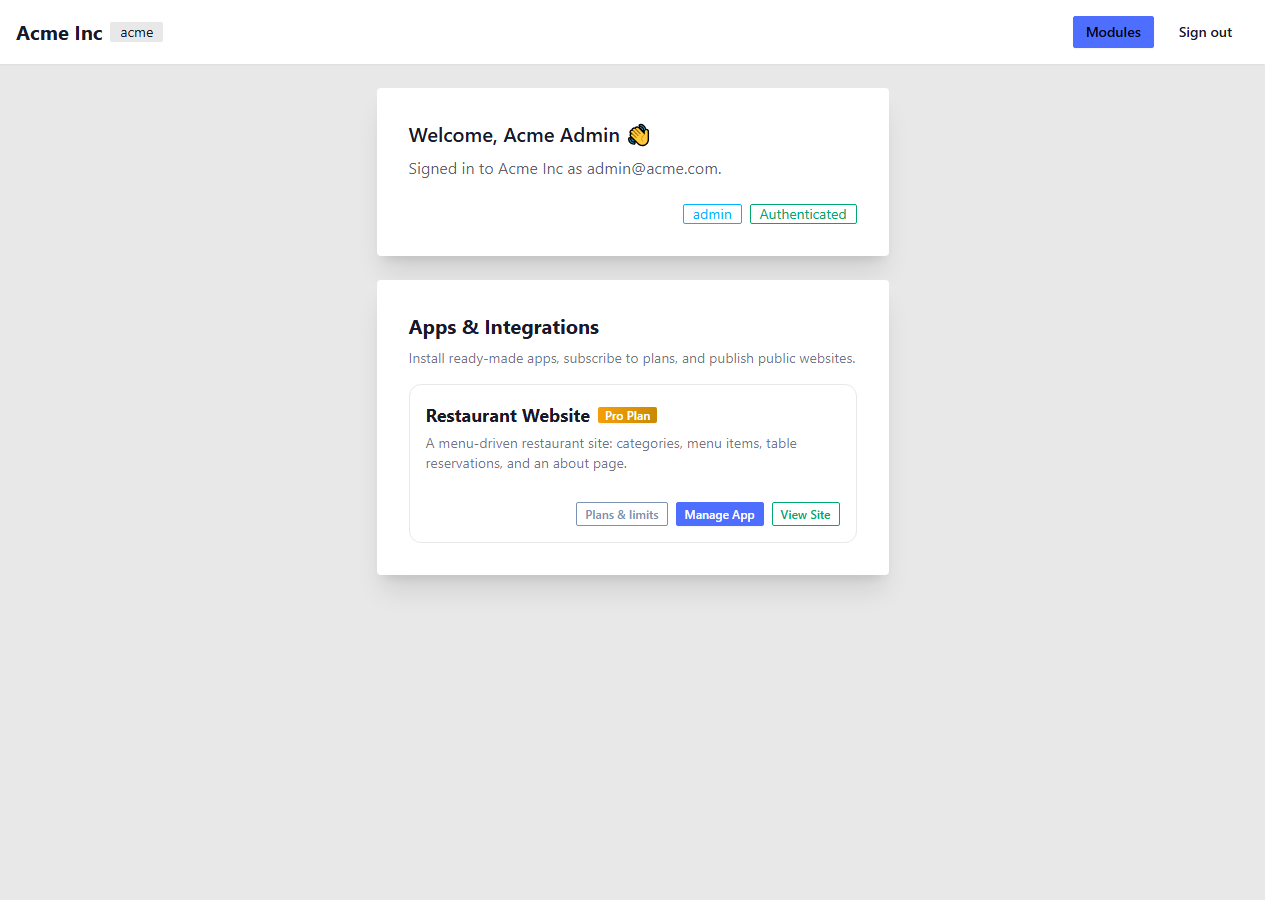
Organization settings panel in the org dashboard
Your subdomain URL
When you create an organization, you choose a subdomain. Your permanent workspace URL takes the form
yoursubdomain.webs8.com. All your apps, admin panels, and public sites live under this URL.
For example, if your subdomain is acme, your org dashboard is at
acme.webs8.com, and your public restaurant menu is at
acme.webs8.com/restaurant/menu.