Restaurant Details & Branding
Your restaurant details appear on your public menu site. Keep them up to date so customers can find and recognize you.
In short: Set your restaurant name, logo, currency symbol, opening hours, address, and contact info from Restaurant Admin under Apps → Restaurant → Open. These details appear on your public menu site — click Save changes to publish them.
Opening the settings
-
Open Restaurant Admin
From your org dashboard, go to Apps → Restaurant → click Open.
-
Click the "Restaurant" tab
In the top tab bar of the Restaurant Admin, click the Restaurant tab to access the settings form.
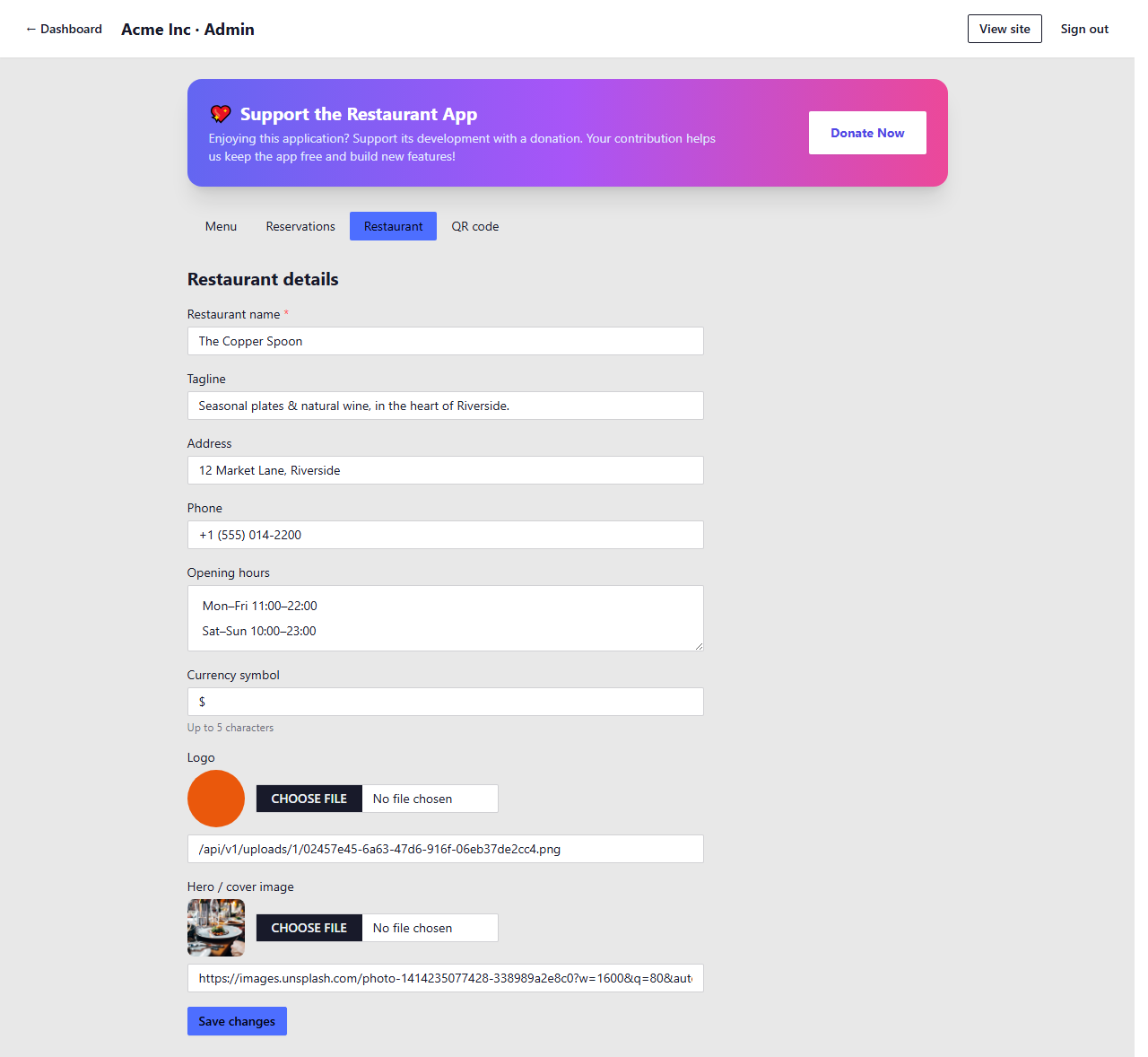
The Restaurant tab in Restaurant Admin
Fields
| Field | Description |
|---|---|
| Restaurant name required | Your restaurant's display name, shown prominently on the public menu site and in the browser tab. |
| Tagline | A short marketing line displayed beneath your restaurant name — e.g. "Fresh ingredients, bold flavors". |
| Address | Your physical address, shown in the contact section of your public menu. |
| Phone | Your contact phone number, displayed so customers can call for reservations or enquiries. |
| Opening hours | Free text — e.g. "Mon–Fri 9am–10pm, Sat–Sun 10am–11pm". Shown in the contact section of the public menu. |
| Currency symbol | 1–5 characters shown before prices on the menu. Default is $. Examples: $, £, €, ₹, AED. |
| Logo | Square image that represents your restaurant identity across the public site. Recommended minimum: 200×200 px. |
| Hero / cover image | A wide banner image shown at the top of your public menu page. Recommended aspect ratio: 16:9 or wider. |
Save changes
Click the Save changes button at the bottom of the form. Your updated details appear on the public menu site immediately.