Menu QR Code
Give diners instant access to your menu — print the QR code on tables, windows, or takeaway bags.
In short: Generate a QR code in Restaurant Admin that links to your public menu, download it as a PNG, and print it on tables, windows, or takeaway bags so diners can open your menu instantly by scanning.
-
Open Restaurant Admin → QR Code tab
From your org dashboard, go to Apps → Restaurant → Open, then click the QR Code tab in the top tab bar.
-
Your QR code is generated automatically
The QR code links directly to your public menu URL (
yoursubdomain.webs8.com/restaurant/menu). No setup required. -
Download PNG
Click Download PNG to save a high-quality image file to your device, ready for use in print designs.
-
Copy link
Click Copy link to copy the public menu URL to your clipboard for sharing digitally.
-
Print it
Use the downloaded PNG in any design tool — Canva, Adobe Express, Word, or Google Slides — or print it directly from your browser. Minimum recommended print size: 3×3 cm (1.2×1.2 inches).
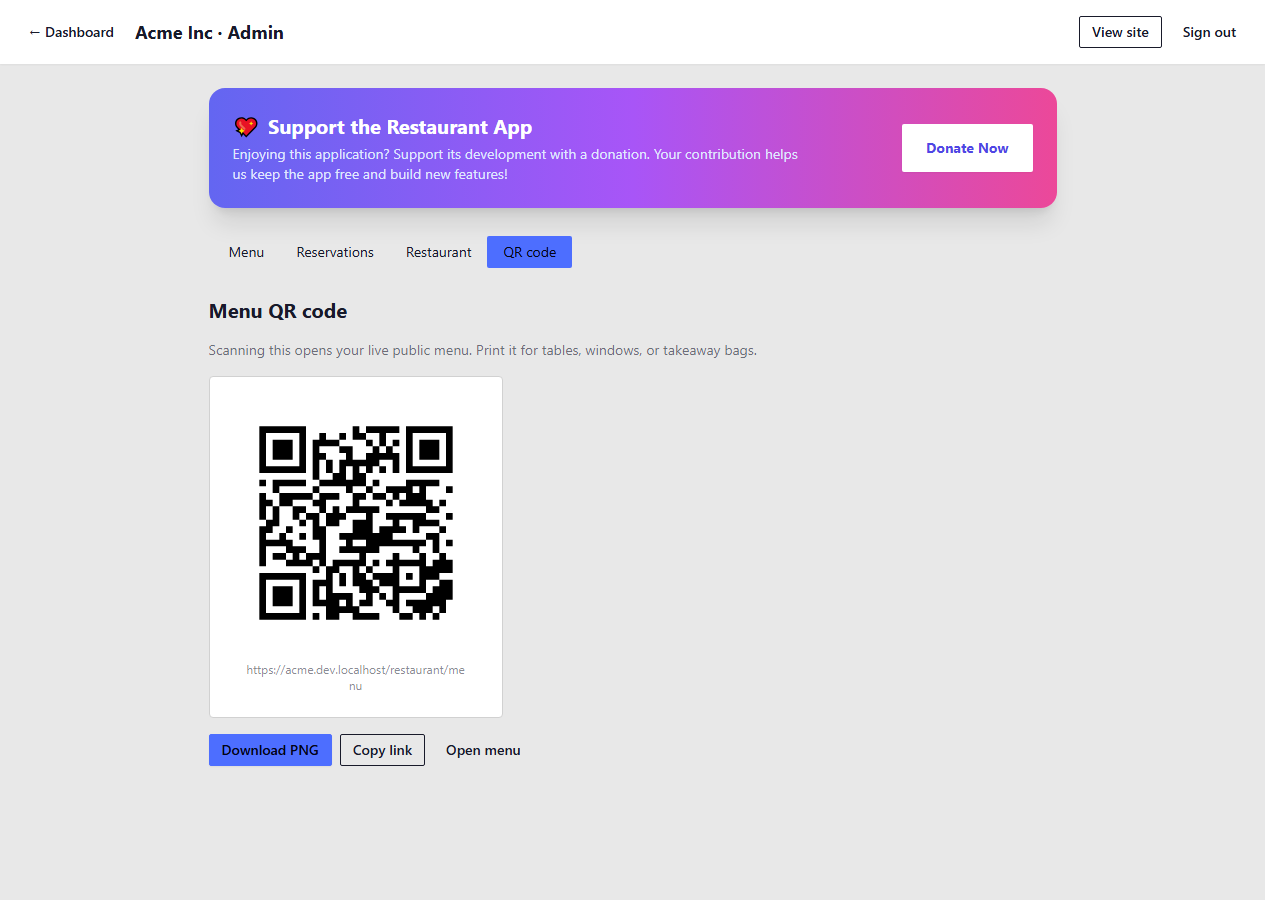
The QR Code tab in Restaurant Admin
Where to use it
- Table tents — print small cards to stand on each table
- Window stickers — let passers-by browse your menu before entering
- Printed menus — as a companion link for guests who prefer digital browsing
- Takeaway bags — encourage repeat orders by adding the QR code to packaging
- Social media posts — share your menu with followers
The QR code always links to the live menu. If you update items or prices, the QR code doesn't change — customers who scan it always see your latest menu. You never need to reprint the QR code after making menu changes.