Manage Menu
Your menu is the heart of your restaurant app. Items are grouped by category and displayed on your public menu page.
In short: Manage your menu in the Restaurant app's Menu tab, where items are grouped by category and shown on your public menu page. From there you can add, edit, delete, and toggle the availability of items.
How the menu works
Every menu item belongs to a category (e.g. Starters, Mains, Desserts). Categories act as headings that group related items together on your public menu page. Each item has:
- Name — the dish or drink name
- Price — numeric value; the currency symbol is set in Restaurant Details
- Description — a short, appetizing description of the dish
- Image — a photo of the dish displayed on the public menu
- Availability — toggle to show or hide the item without deleting it
- Category — the group the item belongs to
Menu tab overview
The Menu tab in Restaurant Admin shows your menu laid out by category. Each category section has a header with the category name. Under each header, item cards display:
- The dish photo (or a placeholder if no image is uploaded)
- The item name and price
- A short description
- Edit and Delete buttons for quick management
At the top of the tab, an + Add item button opens the item creation form.
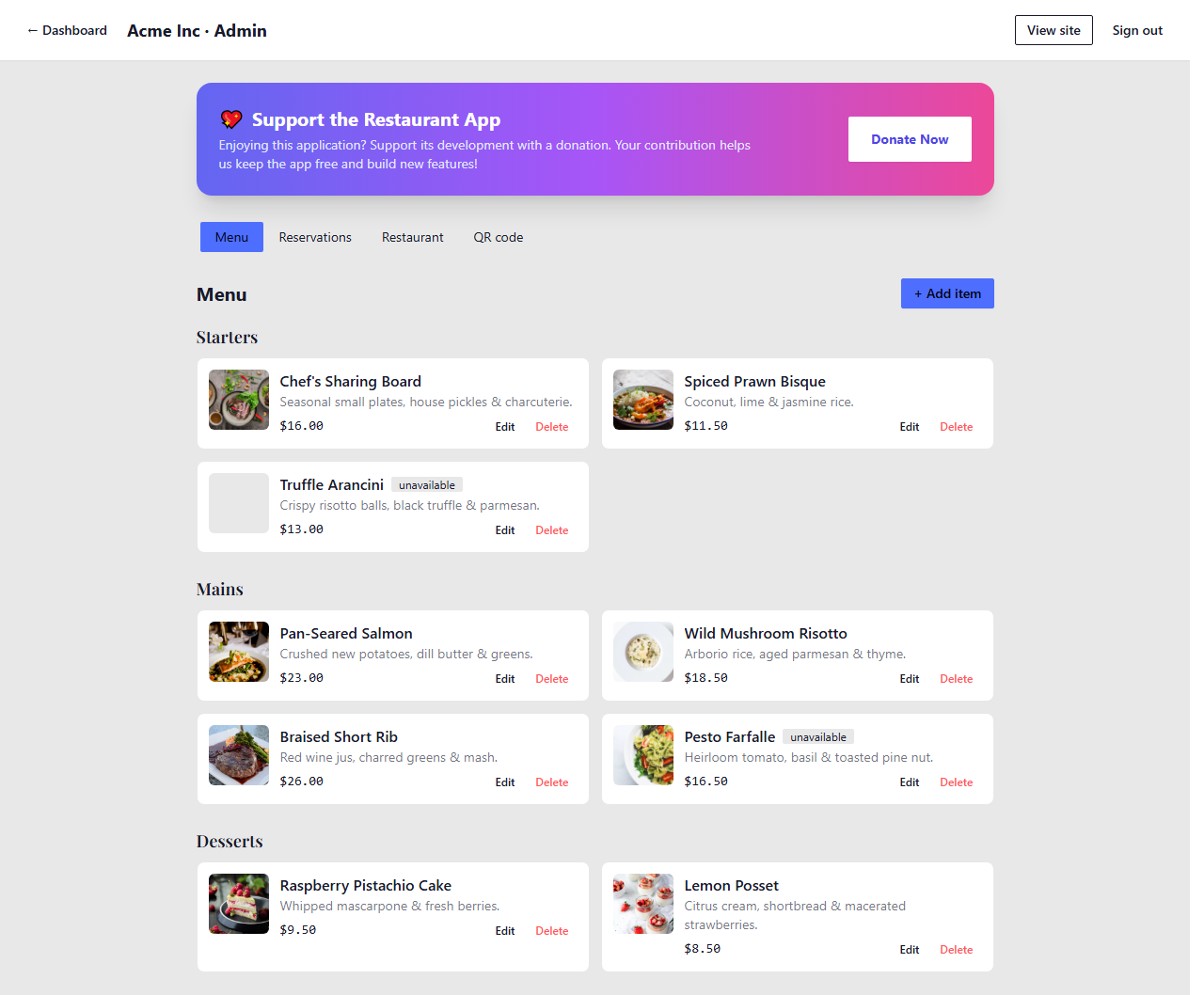
The Menu tab in Restaurant Admin