Edit a Menu Item
Update any field of an existing menu item — change the price, update a photo, or fix a description.
In short: To edit a menu item, open the Menu tab in Restaurant Admin, find the item, and update any field — price, photo, description, category, or availability. Changes appear on your public menu immediately after you save.
-
Open Restaurant Admin → Menu tab
From your org dashboard, go to Apps → Restaurant → Open, then click the Menu tab.
-
Find the item
Browse through the category sections or scroll the page to locate the item you want to update.
-
Click "Edit" on the item card
The item form opens, pre-filled with all current values — name, category, price, description, image, and availability status.
-
Make your changes
Update any fields you need. You can change a single field or multiple fields at once.
-
Click "Save"
Your changes are saved and appear on the public menu immediately — no publish step required.
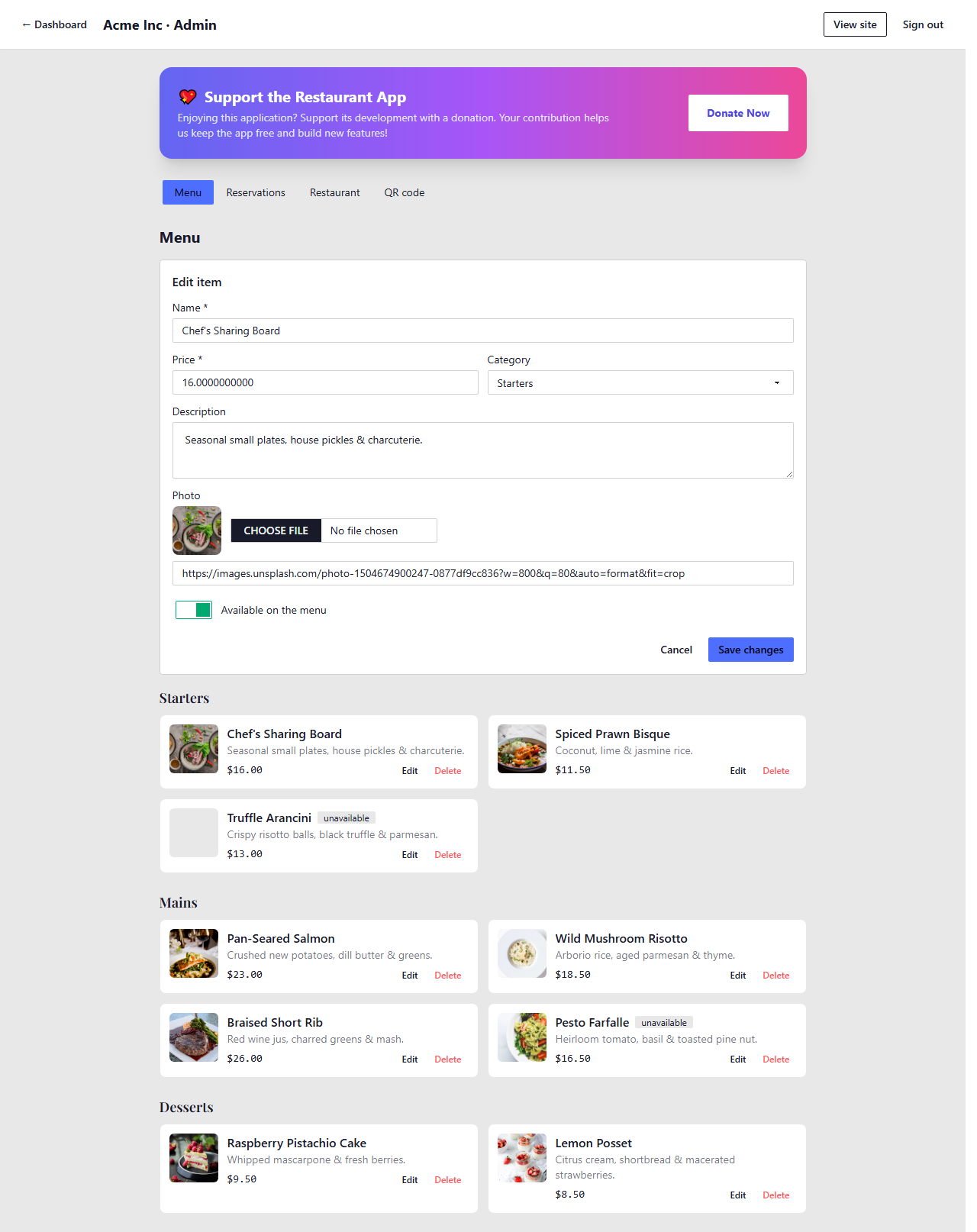
The edit form is pre-filled with the item's current values
Changes are live immediately. Updates to prices, names, descriptions, or images appear on the public menu as soon as you click Save. Customers who refresh the page will see the latest version.