Install the Restaurant App
Install takes about 30 seconds and sets up all the modules your restaurant needs.
In short: To install the Restaurant app, open your org dashboard at
yoursubdomain.webs8.com as an admin, go to Apps, find the Restaurant card, and click Install. webs8 automatically creates four data modules: restaurant_info, categories, menu_items, and reservations.
-
Go to your org dashboard
Visit
yoursubdomain.webs8.comin your browser and sign in as an admin. -
Open Apps
Click Apps in the left navigation. You'll see a gallery of available apps for your organization.
-
Find Restaurant
Locate the Restaurant app card in the apps list.
-
Click Install
Click the Install button on the card. webs8 automatically creates four data modules for your restaurant:
restaurant_info,categories,menu_items, andreservations. -
Open the app
Once installation completes, click Open to go to the Restaurant Admin dashboard where you can start configuring your restaurant.
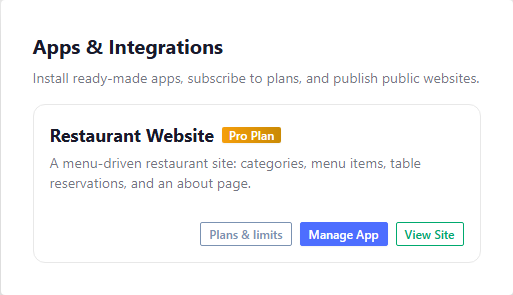
The Apps section in your organization dashboard
What gets created: Installation creates four modules —
restaurant_info (your branding and contact details), categories (menu groupings), menu_items (dishes and drinks), and reservations (customer booking requests). These are the data containers for your restaurant.